Mastra 文档服务器
🌐 Mastra Docs Server
@mastra/mcp-docs-server 包通过 Model Context Protocol (MCP) 提供对 Mastra 完整知识库的直接访问,包括文档、代码示例、博客文章和更新日志。它可以与 Cursor、Windsurf、Cline、Claude Code、VS Code、Codex 或任何支持 MCP 的工具一起使用。
🌐 The @mastra/mcp-docs-server package provides direct access to Mastra’s full knowledge base, including documentation, code examples, blog posts, and changelogs, via the Model Context Protocol (MCP). It works with Cursor, Windsurf, Cline, Claude Code, VS Code, Codex or any tool that supports MCP.
这些工具旨在帮助代理获取精确的、针对特定任务的信息——无论你是在为代理添加功能、搭建新项目的框架,还是在探索某项事物的工作原理。
🌐 These tools are designed to help agents retrieve precise, task-specific information — whether you're adding a feature to an agent, scaffolding a new project, or exploring how something works.
在本指南中,你将学习如何将 Mastra 的 MCP 服务器添加到你的 AI 工具中。
🌐 In this guide you'll learn how to add Mastra's MCP server to your AI tooling.
安装Direct link to 安装
🌐 Installation
create-mastraDirect link to create-mastra
在交互式 create-mastra 向导中,在 MCP 步骤中选择你的一种工具。
🌐 During the interactive create-mastra wizard, choose one of your tools in the MCP step.
手动设置Direct link to 手动设置
🌐 Manual setup
如果下面没有针对你的工具的具体说明,你仍然可能使用这个通用的 JSON 配置添加 MCP 服务器。
🌐 If there are no specific instructions for your tool below, you may be able to add the MCP server with this common JSON configuration anyways.
{
  "mcpServers": {
    "mastra": {
      "type": "stdio",
      "command": "npx",
      "args": ["-y", "@mastra/mcp-docs-server@latest"]
    }
  }
}
Claude 代码命令行Direct link to Claude 代码命令行
🌐 Claude Code CLI
使用终端命令安装:
🌐 Install using the terminal command:
claude mcp add --scope project mastra -- npx -y @mastra/mcp-docs-server@latest
如果尚不存在,这会创建一个项目范围的 .mcp.json 文件。当使用 Claude Code 作为 Visual Studio Code 扩展 时,也可以使用相同的命令。
🌐 This creates a project-scoped .mcp.json file if one doesn't already exist. You can use the same command when using Claude Code as a Visual Studio Code extension.
关于使用 Claude Code 的 MCP 服务器的更多信息
OpenAI Codex 命令行接口Direct link to OpenAI Codex 命令行接口
🌐 OpenAI Codex CLI
-
在终端注册它:
codex mcp add mastra-docs -- npx -y @mastra/mcp-docs-server@latest -
运行
codex mcp list以确认服务器显示为enabled。
关于在 OpenAI Codex 中使用 MCP 服务器的更多信息
CursorDirect link to Cursor
点击下面的按钮进行安装:
🌐 Install by clicking the button below:

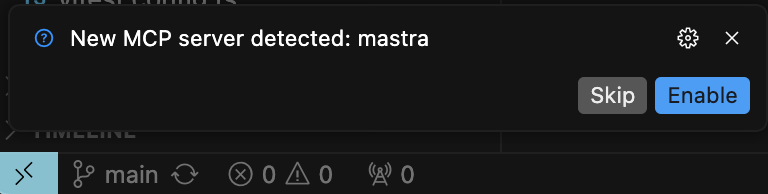
如果你按照自动安装进行,当你在左下角打开光标时,会看到弹出窗口提示你启用 Mastra Docs MCP 服务器。
🌐 If you followed the automatic installation, you'll see a popup when you open cursor in the bottom left corner to prompt you to enable the Mastra Docs MCP Server.
AntigravityDirect link to Antigravity
Google Antigravity 是一个以代理为先的开发平台,支持 MCP 服务器以访问外部文档、API 和项目上下文。
🌐 Google Antigravity is an agent-first development platform that supports MCP servers for accessing external documentation, APIs, and project context.
-
打开你的Antigravity MCP 配置文件:
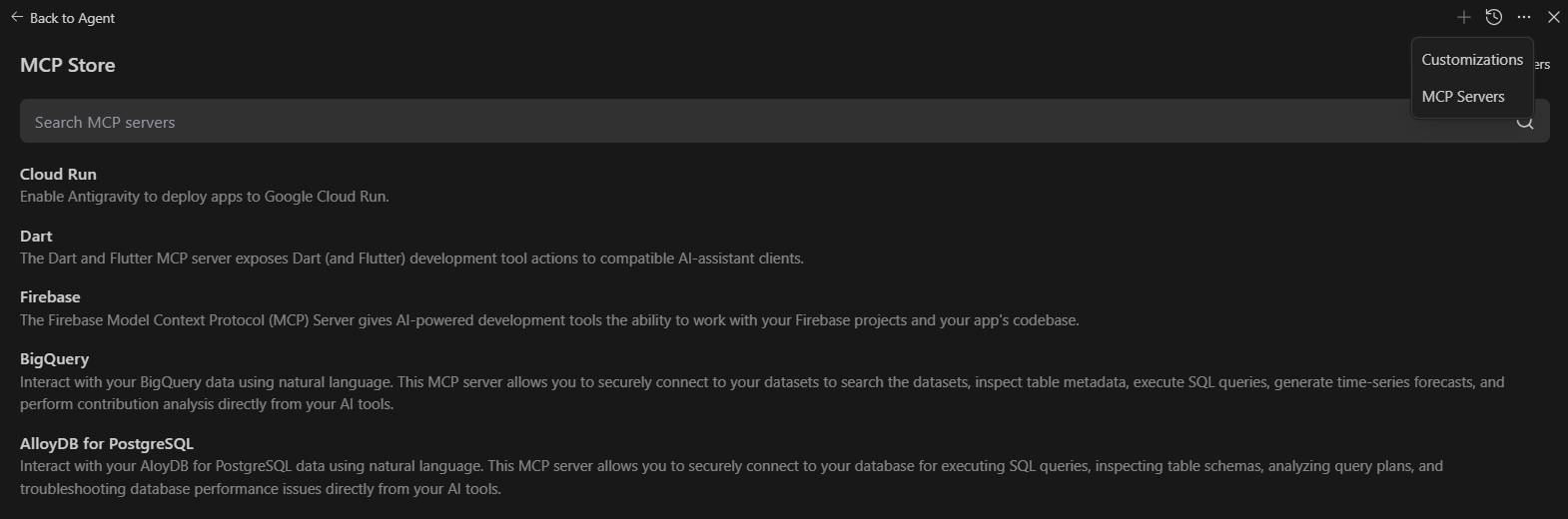
- 点击 Agent session,然后在编辑器侧边栏顶部选择 “…” 下拉菜单,接着选择 MCP Servers 来访问 MCP Store。
- 你可以通过Antigravity中的MCP存储界面访问它
-
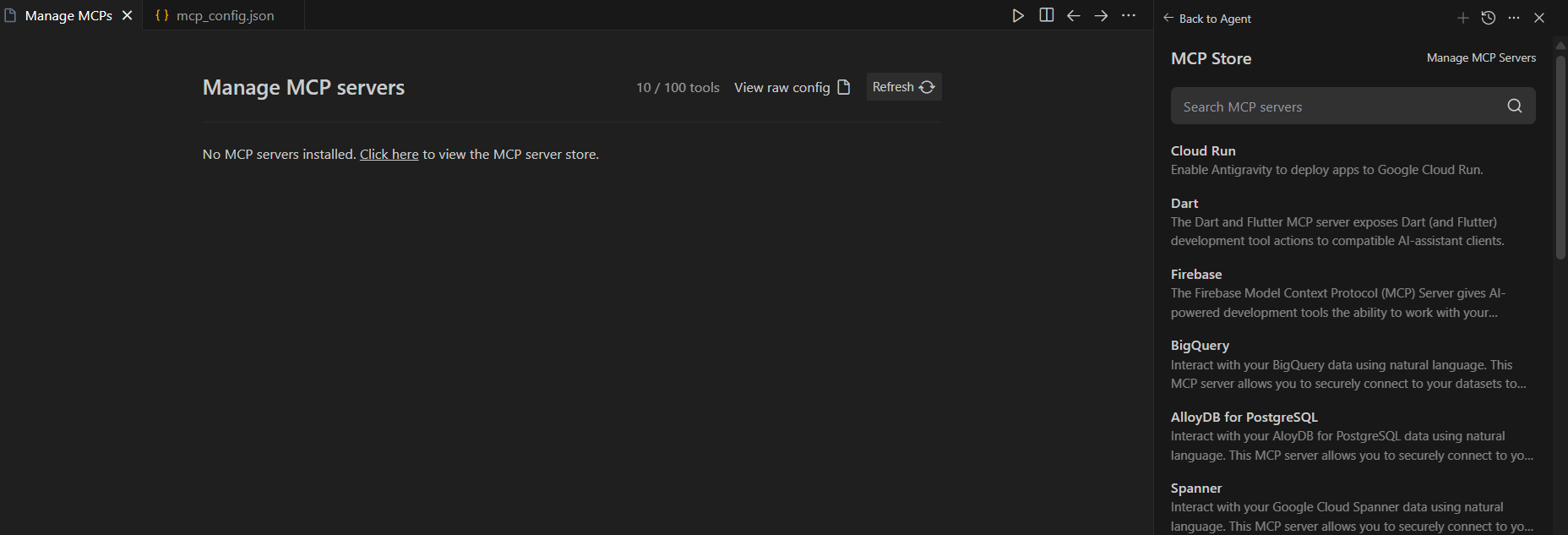
要添加自定义 MCP 服务器,请在 MCP 存储顶部选择 管理 MCP 服务器,然后在主标签中点击 查看原始配置。
-
添加 Mastra MCP 服务器配置:
{
  "mcpServers": {
    "mastra-docs": {
      "command": "npx",
      "args": [
        "-y",
        "@mastra/mcp-docs-server"
      ]
    }
  }
} -
保存配置并重启Antigravity
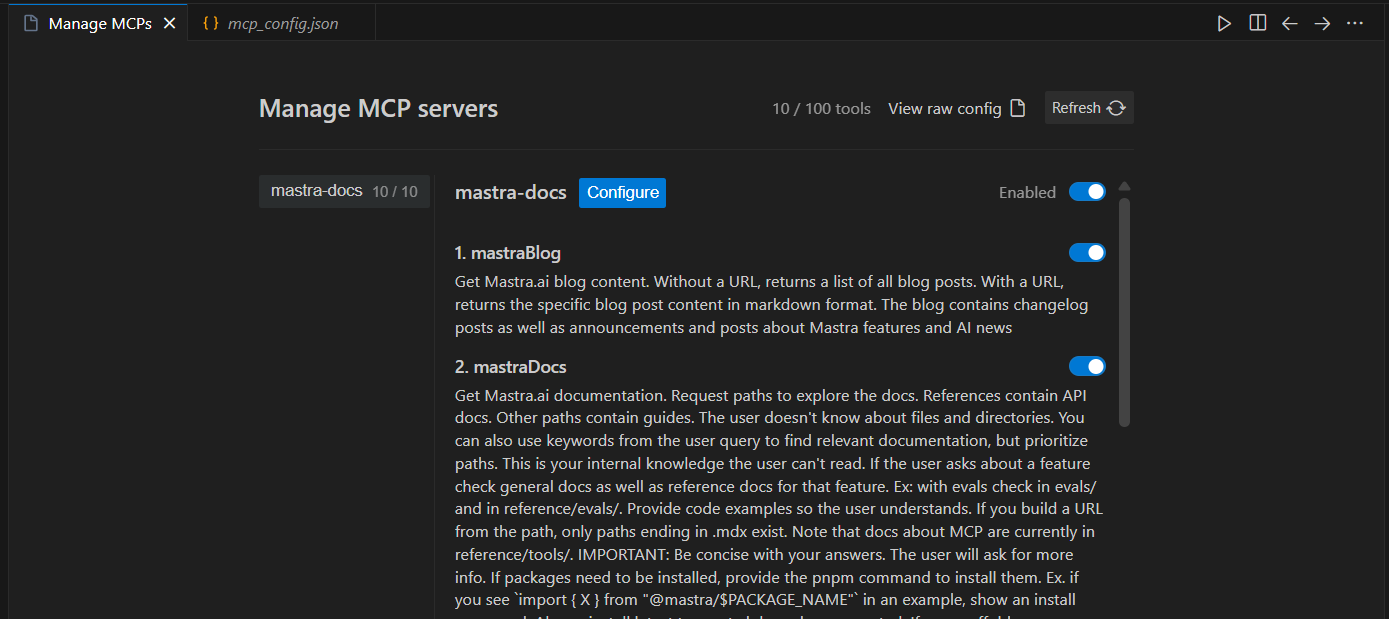
一旦配置完成,Mastra MCP 服务器会向Antigravity代理公开以下内容:
🌐 Once configured, the Mastra MCP server exposes the following to Antigravity agents:
- Mastra 的索引文档和 API 架构,支持在代码生成过程中以编程方式获取相关上下文
- 访问存储在 Mastra 文档中的示例代码片段和使用模式
- 用于编辑器中错误处理和调试引用的结构化数据
- 有关当前 Mastra 项目模式的代码建议和补全的元数据
MCP 服务器将出现在 Antigravity 的 MCP 存储中,你可以在需要时管理其连接状态和身份验证。
🌐 The MCP server will appear in Antigravity's MCP Store, where you can manage its connection status and authentication if needed.
有关在 Antigravity 上使用 MCP 服务器的更多信息
Visual Studio CodeDirect link to Visual Studio Code
-
在你的工作区创建一个
.vscode/mcp.json文件 -
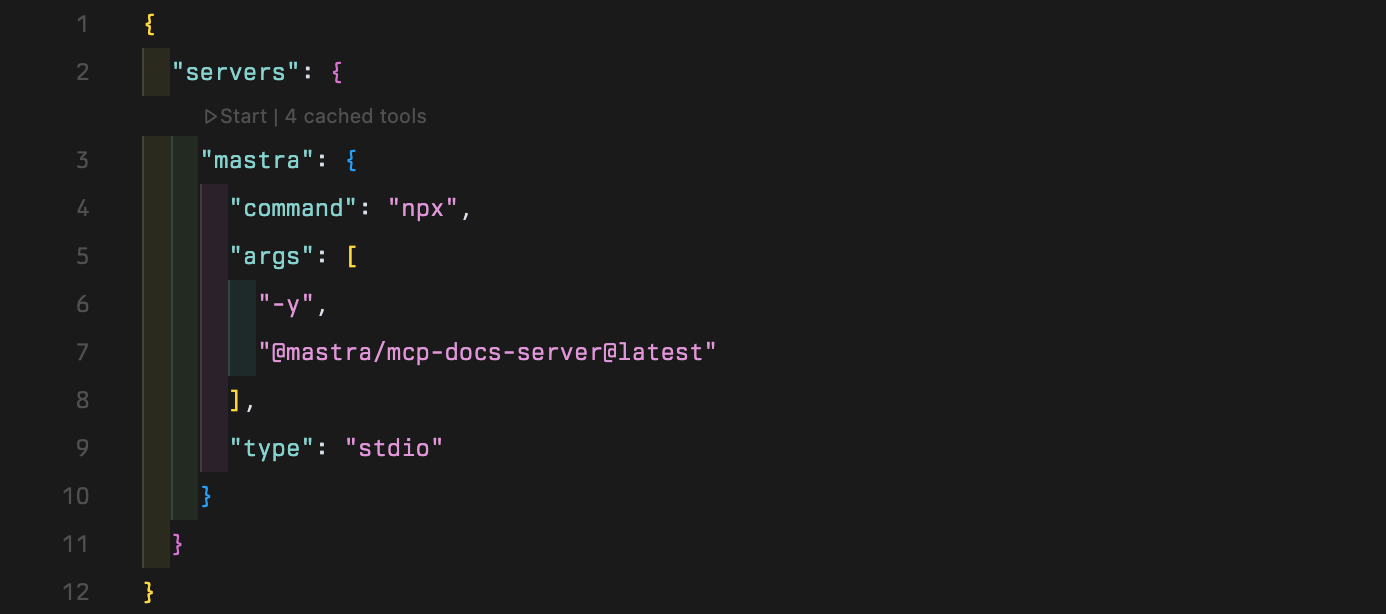
插入以下配置:
.vscode/mcp.json{
"servers": {
"mastra": {
"type": "stdio",
"command": "npx",
"args": ["-y", "@mastra/mcp-docs-server@latest"]
}
}
}
一旦你安装了 MCP 服务器,你就可以这样使用它:
🌐 Once you installed the MCP server, you can use it like so:
-
打开 VSCode 设置。
-
导航到 MCP 设置。
-
在聊天 > MCP 选项上点击“启用”。

MCP 在 VSCode 中仅在代理模式下工作。进入代理模式后,打开 mcp.json 文件并点击“开始”按钮。请注意,只有当包含 mcp.json 的 .vscode 文件夹位于你的工作区根目录或编辑器内文件资源管理器的最顶层时,“开始”按钮才会出现。
🌐 MCP only works in Agent mode in VSCode. Once you are in agent mode, open the mcp.json file and click the "start" button. Note that the "start" button will only appear if the .vscode folder containing mcp.json is in your workspace root, or the highest level of the in-editor file explorer.
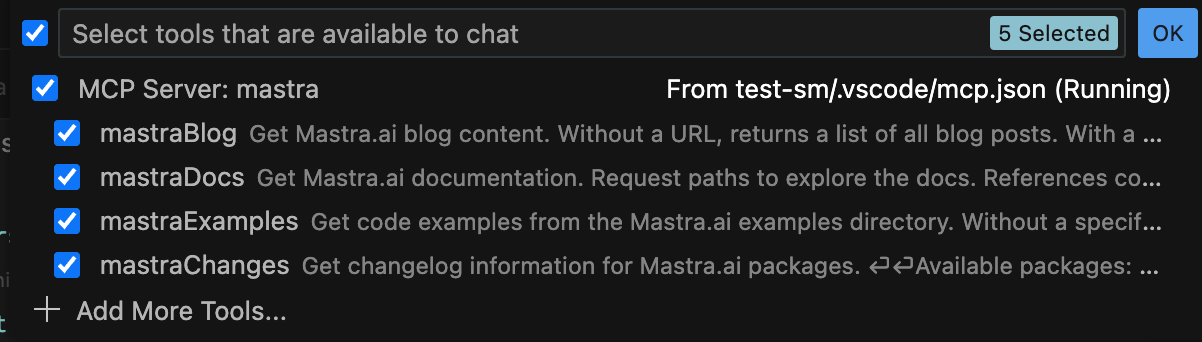
启动 MCP 服务器后,点击 Copilot 面板中的工具按钮以查看可用工具。
🌐 After starting the MCP server, click the tools button in the Copilot pane to see available tools.
在 Visual Studio Code 中使用 MCP 服务器的更多信息
WindsurfDirect link to Windsurf
-
在编辑器中打开
~/.codeium/windsurf/mcp_config.json -
插入以下配置:
~/.codeium/windsurf/mcp_config.json{
"mcpServers": {
"mastra": {
"command": "npx",
"args": ["-y", "@mastra/mcp-docs-server@latest"]
}
}
} -
保存配置并重启 Windsurf
OpenCodeDirect link to OpenCode
你可以在你的 OpenCode 配置 中的 mcp 下定义 MCP 服务器。在你的项目根目录中创建一个 opencode.jsonc 文件,内容如下:
🌐 You can define MCP servers in your OpenCode configuration under mcp. Create an opencode.jsonc file in your project root with the following content:
{
  "$schema": "https://opencode.ai/config.json",
  "mcp": {
    "mastra": {
      "type": "local",
      "command": ["npx", "-y", "@mastra/mcp-docs-server@latest"],
      "enabled": true,
    },
  },
}
ZedDirect link to Zed
- 在编辑器中打开
~/.config/zed/settings.json - 插入以下配置:
{
  "context_servers": {
    "Mastra": {
      "command": "npx",
      "args": ["-y", "@mastra/mcp-docs-server@latest"]
    }
  }
}
用法Direct link to 用法
🌐 Usage
配置完成后,你可以向你的 AI 工具提问关于 Mastra 的问题,或指示它执行操作。在这些步骤中,它将从 Mastra 的 MCP 服务器获取最新信息。
🌐 Once configured, you can ask your AI tool questions about Mastra or instruct it to take actions. For these steps, it'll take the up-to-date information from Mastra's MCP server.
添加功能:
- 给我的代理添加评估并编写测试
- 为我编写一个执行以下操作
[task]的工作流程 - 制作一个新工具,让我的代理能够访问
[3rd party API]
询问集成情况:
- Mastra可以和AI SDK一起使用吗?我如何在我的
[React/Svelte/etc]项目中使用它? - 关于 MCP,Mastra 最新消息是什么?
- Mastra 支持
[provider]语音和语音 API 吗?请给我一个在代码中使用它的示例。
调试或更新现有代码:
- 我在使用代理内存时遇到了一个错误,最近有相关的更改或错误修复吗?
- 工作内存在 Mastra 中是如何表现的,我怎样才能用它来完成
[task]?它似乎不像我预期的那样工作。 - 我看到有新的工作流程功能,给我解释一下,然后更新
[workflow]以使用它们。
故障排除Direct link to 故障排除
🌐 Troubleshooting
- 服务器未启动
- 确保已安装并正在使用 npx。
- 检查是否有冲突的MCP服务器。
- 验证你的配置文件语法。
- 工具调用失败
- 重新启动 MCP 服务器和/或你的 IDE。
- 将你的 IDE 更新到最新版本。